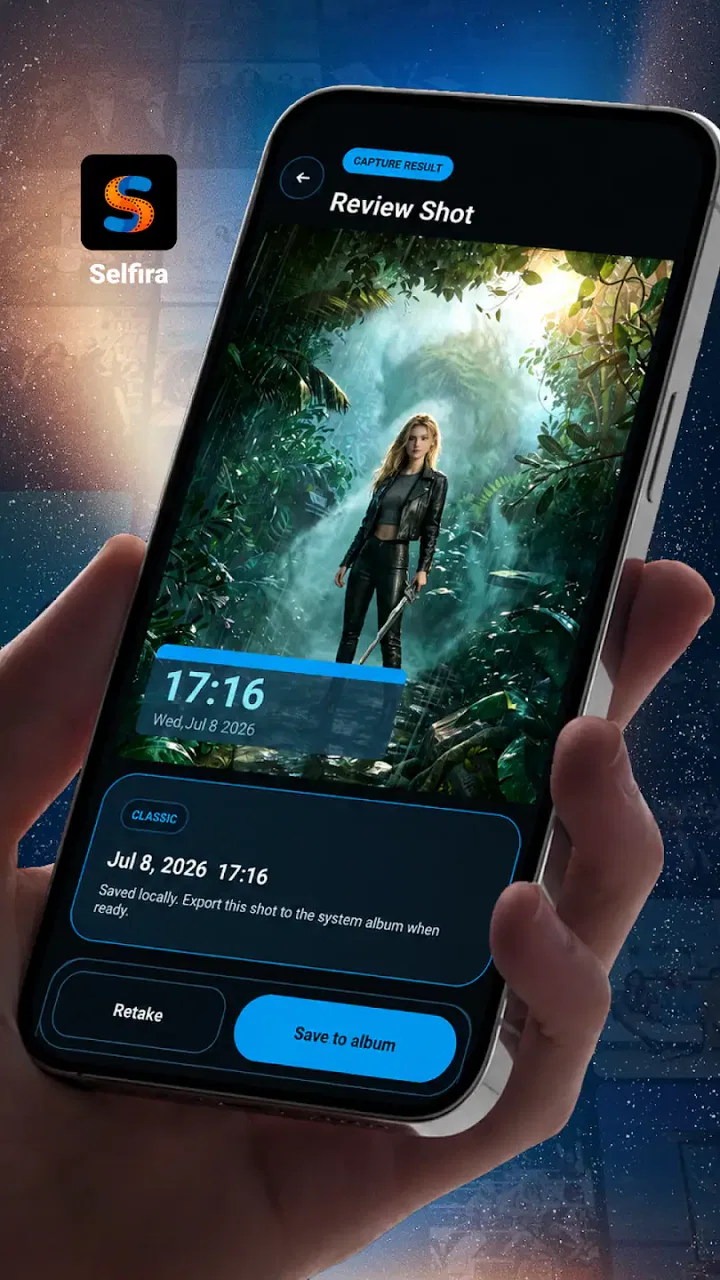
Selfira
- 4.7
- Rating
- 50.00K
- Installs
- Free
- Price

 Analysis by App-foxy
I approached Selfira as a practical personalization app rather than a general camera replacement. Its purpose is narrow but useful: it creates photo records with a timestamped watermark, keeping the image and its time context together. That makes it interesting for people who need a simple visual record of what happened, when it happened, or what a place looked like at a particular moment.
In my experience, the appeal is less about creative photography and more about reducing doubt later. A normal camera may capture the image beautifully, but the date and time often live separately in file details, which are easy to overlook or lose when an image is shared. Selfira puts that information directly on the picture. The trade-off is equally clear: the watermark becomes part of the image, so this is not the tool I would choose for polished portraits, clean product shots, or photos intended for a gallery.
How Selfira feels in everyday use
I find Selfira most useful when the time needs to travel with the photo, rather than remain tucked away in file details. In this section, I’ll focus on the small habits that make that visible context more dependable—especially checking the phone’s clock and framing the subject so the image still explains itself. That distinction matters when deciding whether a quick timestamped picture is enough or a fuller written record is the better next step.
You May Also Like

 Blood Strike: 2.5 Anniversary
Blood Strike’s Loadouts Turn Every Drop Into a Tactical Gamble
A close look at Blood Strike’s custom loadouts: how fast access to signature weapons reshapes its battle royale rhythm, rewards preparation, and narrows the gap between fights.

 Pandora - Music & Podcasts
Pandora’s Music Is Easy to Start, but Harder to Recover
Pandora’s strength is its low-effort path from a seed to a station. Its weak spot is how much confidence it asks you to place in connection, setup, and quiet recovery.

 8 Ball Pool
8 Ball Pool Is Built on Rivalries, Rematches, and Routine
A close look at the rivalries, rematches, shared routines, and unanswered safety questions that turn a quick pool match into a persistent mobile community.

 Samsung Music
Samsung Music’s Quiet Strength Is Playing What You Already Own
Its reach comes less from spectacle than from dependable access to a personal library. That simplicity is both the app’s strongest retention engine and its ceiling.

 AccuWeather: Weather Radar
AccuWeather Review: A Quick, Clear Forecast for Everyday Decisions
For everyday plans, the best forecast is the one you can understand quickly. AccuWeather makes rain timing, radar, and local conditions easy to act on, with a few trade-offs.

 Hill Climb Racing
Why Hill Climb Racing Still Turns Crashes Into One More Run
A tiny car, a bumpy hill and one more upgrade: Hill Climb Racing keeps resurfacing because its simple chaos makes every near-miss feel personal.
More From Our News Desk



Readability and navigation come before decoration
The strongest part of this concept is its directness. A timestamped camera should not make me move through a complicated editing workflow before I can create a usable record. Selfira belongs to the personalization category, but its practical role sits close to documentation: open it, frame something, and preserve the time context in a visible way.
That simplicity can matter for people who find crowded interfaces tiring. Someone using the app while checking a delivery, documenting a maintenance issue, or recording the condition of a rented space benefits from a focused task rather than a wall of creative controls. The app’s value comes from the result being understandable at a glance, not from offering endless ways to adjust a picture.
For readability, the timestamp itself is the key element. A visible date and time can help when images are reviewed quickly in a phone gallery or sent to somebody who will not inspect file metadata. I would still check the finished image before relying on it, especially when the background is busy or brightly lit. A watermark that blends into a pale wall, reflective surface, or outdoor sky may be less immediately readable than one placed over a darker area.
There is also an important cognitive advantage in keeping the record inside the photograph. If I take several similar pictures during a task, I do not have to remember which file belongs to which moment. That can reduce mental effort for users who are managing multiple steps, working under pressure, or revisiting images after a long day.
At the same time, a focused camera can feel limited to somebody expecting the controls of a full photography app. People who need extensive composition guidance, detailed exposure control, advanced editing, or a broad selection of creative effects may find the experience too restrained. Selfira makes more sense when certainty and speed matter more than artistic control.
Motor and sensory considerations
A camera workflow naturally involves several physical actions: holding the phone steady, framing the subject, and activating the shutter. That means the app may be comfortable for users who can manage ordinary camera gestures, but less convenient for somebody with hand tremors, limited reach, or difficulty maintaining a stable grip. I would not describe the app as universally effortless simply because its purpose is simple.
A useful way to work around that limitation is to prepare the scene before opening the camera task. Resting the phone against a stable surface, using both hands, or taking the picture from a position that does not require stretching can make the process more reliable. This is especially relevant when the photograph is meant to document a fixed object rather than capture a spontaneous moment.
Visual users may appreciate having the time information printed directly on the image, since it does not require opening a separate details panel. However, the usefulness of that information depends on contrast, size, and placement. I would enlarge a saved image and inspect the watermark during an initial trial. If the text is difficult to distinguish, the app may not meet the needs of someone with low vision, even though the concept itself is accessibility-friendly in spirit.
For people who are sensitive to visual clutter, the watermark is a genuine trade-off. It adds information but also adds an element that cannot be ignored in the final photo. A timestamp can help a person organize evidence, yet it may distract from the object being recorded. This is one of those cases where the same feature supports one user and bothers another.
Users with hearing-related access needs are not disadvantaged by the core idea of a visual timestamp, because the important output is visible in the image rather than communicated only through sound. Still, I would not assume that every part of the camera interaction is equally accessible without testing it on the specific phone. Device settings, screen readers, display scaling, and system-level controls can change how comfortable the workflow feels.
Situational access: where the app earns its place
The most convincing use case for me is a quick condition record. Imagine moving into a temporary apartment and photographing a scratch on a countertop, a mark on a wall, or a meter reading. With a timestamp printed on each image, the photos are easier to sort and explain later. I would take one wider image showing the surrounding area, then a closer image showing the detail, while keeping the same time context visible.
Another practical scenario is a small repair or service visit. A person can create a visual record before work begins and another after it ends. The app does not replace a written report, but it can make the visual part easier to understand when the images are forwarded to a landlord, customer, family member, or support worker. The important workflow insight is to photograph identifying context as well as the close-up; a timestamp alone does not prove which room, device, or item appears in the frame.
It may also help with personal routines. Someone caring for plants, monitoring a gradual home project, or tracking the condition of stored belongings can create a sequence of images that carries its own time marker. This is more dependable than trying to reconstruct the order later from memory. For users who find calendars, notes, or file management demanding, a visible timestamp can act as a simple organizing aid.
People working outdoors or in changing light should think about legibility before they begin. Glare can make a screen difficult to view, and a bright background can reduce the clarity of overlaid text. I would take a test image in the actual environment rather than assuming that a watermark that looks clear indoors will remain clear in direct sunlight.
The app can also suit users who share images with people using different phones or operating systems. Because the time appears on the image itself, the recipient does not need the same gallery interface or metadata viewer. That is a meaningful situational advantage when a record must be understood by someone who is not technically confident.
How it compares with ordinary camera and note-taking habits
The usual phone camera is more flexible and often better for general photography. It is the better choice when I want clean images, familiar controls, or a photo that can later be edited without an embedded label. A camera app also avoids committing the date and time to the visible composition. For everyday memories, travel pictures, and images I plan to print, I would normally stay with the standard camera.
A notes app paired with ordinary photos offers a different kind of control. I can write a description, add a location manually, and explain what the image shows. That is better when context matters more than speed. The weakness is that the note and photo can become separated, especially when images are shared through messaging services or moved between folders.
Selfira sits between those approaches. It is faster and more visually self-contained than writing a separate note, but less flexible than a full documentation system. The right choice depends on whether the priority is immediate recognition or detailed record keeping. For a quick visual trail, the watermark is helpful. For complex cases involving multiple people, measurements, or long explanations, I would combine the photo with a written record rather than treating it as complete evidence.
Small workflow choices that make the result more useful
My first recommendation is to decide what the photograph needs to prove before pressing the shutter. If it needs to show a damaged object, include enough surrounding detail to identify the location. If it needs to show a reading or label, move close enough for the important characters to remain clear. The timestamp adds time context, but it cannot correct a vague or poorly framed image.
Second, use a consistent sequence when making a set of records. I would begin with a wide establishing image, follow with a medium view, and finish with a close-up. This creates a more understandable visual trail than taking many similar close shots. It also makes the app more useful for people who later need to explain the situation to someone who was not present.
Third, review the image immediately instead of assuming every capture worked. Check that the subject is sharp, the watermark can be read, and no important edge has been cut off. This is particularly valuable for users with visual processing difficulties, because a quick confirmation prevents a frustrating discovery after the scene has changed.
A fourth insight is to avoid using timestamped images as the only record when the stakes are high. The visible time can improve clarity, but it does not automatically establish location, ownership, condition before an event, or the identity of the person who took the picture. In a serious dispute or formal process, I would preserve the original files and add written context as well.
Remaining barriers and sensible reasons to skip it
The embedded watermark is both the app’s defining benefit and its largest limitation. Once the time is part of the picture, the image is less clean for presentation. A designer, seller, photographer, or social media creator may find it distracting. If the goal is attractive imagery rather than a traceable record, a conventional camera is the more suitable option.
There is also a learning curve around expectations. A person may assume that a timestamp makes a photograph automatically authoritative, but it only supplies one visible piece of context. Users should still confirm that the phone’s clock is correct before creating an important series. That is a simple preparation step, yet it can prevent an entire set of records from carrying an incorrect time.
Physical camera use remains a barrier for some people. If holding a phone, tapping a shutter, or aligning a subject is difficult, the app may require assistance or a stable setup. I would test it with the device’s existing accessibility options and any preferred support equipment rather than promising that the app alone solves motor access.
People who depend heavily on screen readers or enlarged text should evaluate the actual controls on their device before committing to a documentation routine. The visible timestamp may be valuable, but the capture process still depends on interacting with a camera interface. A different tool may be preferable if it offers a workflow already familiar to the user’s assistive setup.
Privacy also deserves practical attention. A timestamped image can reveal when an activity happened, which may be useful for documentation but sensitive when shared publicly. I would avoid posting such images without considering whether the time exposes a routine, an absence from home, or another detail that the recipient does not need to know. The app’s strength is contextual clarity, and clarity can sometimes reveal more than intended.
Version, availability, and who should try it
Selfira is free, developed by Work zone limited, and available for users of Android 8.0 or later. Its current version is 2.2.0, and the app is rated for Everyone. Those details make it approachable for people who want to test a specialized camera workflow without first paying for it or using a newer phone.
Its reception is encouraging, with a 4.7 average from around 2.2 thousand ratings and more than 50 thousand installs. I would read that as a sign that the focused idea connects with a real audience, not as proof that it will suit every accessibility need or photography preference. A narrow tool can be very effective for its intended task while still being the wrong fit elsewhere.
I would recommend trying it if you regularly need photos that explain their own timing: household records, condition checks, project progress, or quick visual handoffs to another person. I would be more cautious if you need extensive editing, a completely clean image, advanced camera controls, or a workflow built around detailed text and metadata.
An inclusive verdict for a focused camera tool
Selfira’s best quality is that it turns time from hidden file information into visible context. That can support users who need quick recognition, simpler sorting, or a record that remains understandable after sharing. Its focused purpose may also reduce the number of decisions required during a stressful or time-sensitive task.
Its inclusive value has limits. Readability depends on the watermark’s appearance in the real scene, motor access still depends on handling the phone, and the app does not remove the need for good framing or sensible privacy choices. I would treat it as a helpful aid for visual documentation, not as a universal accessibility solution.
My final view is positive but specific: Selfira is worth trying when the timestamp is part of the reason you are taking the photo. It gives that information a clear place in the finished image and can make everyday records easier to understand. If the timestamp would only spoil an otherwise useful photograph, the ordinary camera remains the better choice.
FAQs for Selfira
01What is Selfira and what can I use it for?
Selfira is a beauty and photo-editing application designed to help users enhance selfies and other portraits. After testing its main tools, the app focuses on quick improvements such as skin smoothing, facial adjustments, filters, makeup-style effects, and creative edits. It is aimed at casual users who want polished results without advanced editing experience, although the exact features may vary depending on the device and app version.
02Is Selfira free to download and use?
Selfira can generally be downloaded at no initial cost, but some tools, effects, templates, or export options may be restricted to premium users. Before editing extensively, check the in-app pricing and subscription details because free access can include advertisements or limitations. Users should also review whether subscriptions renew automatically and cancel through the relevant Android or iOS store if they no longer want the paid service.
03Does Selfira require an internet connection?
Selfira may allow basic photo editing on a device, but an internet connection can be necessary for downloading filters, loading online effects, synchronizing content, displaying advertisements, or processing certain features. Availability can also depend on the app version and operating system. If you plan to use Selfira while traveling or without mobile data, open the app beforehand and verify which tools remain available offline.
04Is Selfira safe for editing and storing personal photos?
Before uploading private images, users should review Selfira’s privacy policy, permissions, and terms of service. Photo editors may request access to the device gallery, camera, or storage, and some advanced features can process images online. Only grant permissions that are necessary, avoid uploading highly sensitive photographs, and check whether edited images are saved locally or sent to external servers. Downloading from the official app store is also recommended.
05What devices are compatible with Selfira, and is it easy to use?
Selfira is intended for mobile devices running a supported version of Android or iOS, but compatibility can differ according to the phone model, operating-system version, available storage, and regional availability. Its interface is designed for straightforward editing: select a photo, choose an effect or adjustment, preview the result, and save or share it. Older devices may experience slower processing, limited effects, or occasional performance issues.
Pros
- Simple interface makes routine tracking easy to understand.
- Useful reminders can help users maintain consistent self-care habits.
- Progress history lets users review changes over time.
- Personalized options make the experience more relevant to different users.
- Lightweight design generally feels quick and responsive on modern devices.
Cons
- Some features may require a subscription or in-app purchase.
- Reminder options may feel limited for users needing detailed schedules.
- Personal data and health-related information require careful privacy review.
- The app may offer less value without regular
- consistent use.
- Compatibility and available features can vary between Android and iOS versions.

Selfira
Gallery